



How to: Use Price Check in Sage 300cloud

By Kelly Hunter, Sage 300cloud Consultant for AWCape
As a certified Sage 300cloud consultant, I have found the below tip to be a ‘much needed, but little used feature’ and would like to show how easy it is to use.
By activating price check by item, you can control the minimum and maximum margins achieved on a product.
**Note that this is only available in Premium version of Sage 300Cloud.
Here’s how to set it up in Sage 300Cloud:
- Go to I/C Items and Pricelists, I/C Item Pricing
- Select an Item and a price list on that item – so you could turn on only for certain items in certain price lists, that you want to control.
- Select the pricelist you wish to limit, by clicking twice on the line.

- Select the Price Check tab.

- Select the type you require:
- None: No Change
- Warning: A warning message will pop up, but the user can carry on.
- Error: The Selling Price will need to be changed before the user can continue
- Approval: The Approver must insert their username and password on that line before the user can continue.

- Select the price checking criteria you need.
- At the bottom, select the criteria used for the default user. You can then select other criteria for other users depending on the level of authorization. If the user is not named, then the Default criterium is applicable. In this example, nobody will be able to sell below 30% Gross Profit or over 200% GP, unless it is authorised by ADMIN (who is permitted to sell at 0% GP)
How to: Authorise in the middle of an order on Sage 300cloud
- If this is set up, when processing an order in Order Entry, you will get the following message if your price is outside of your range:
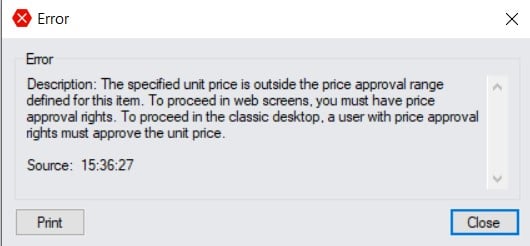
- To authorise, double click on the Price Approval box.
- Where 1 user is selected to authorize, a box comes up for their password.
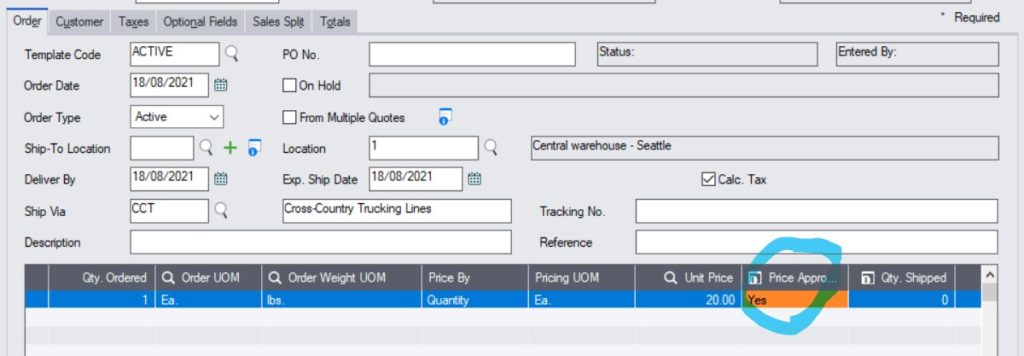

- If more than 1 user is permitted, then the box requires the User ID and then the password.
To find out more, contact support@awcape.co.za

You must be logged in to post a comment.